The table stays the source
Values go in exactly as supplied. Prices, currency symbols, punctuation and approved translations are not rewritten on the way into the banner.
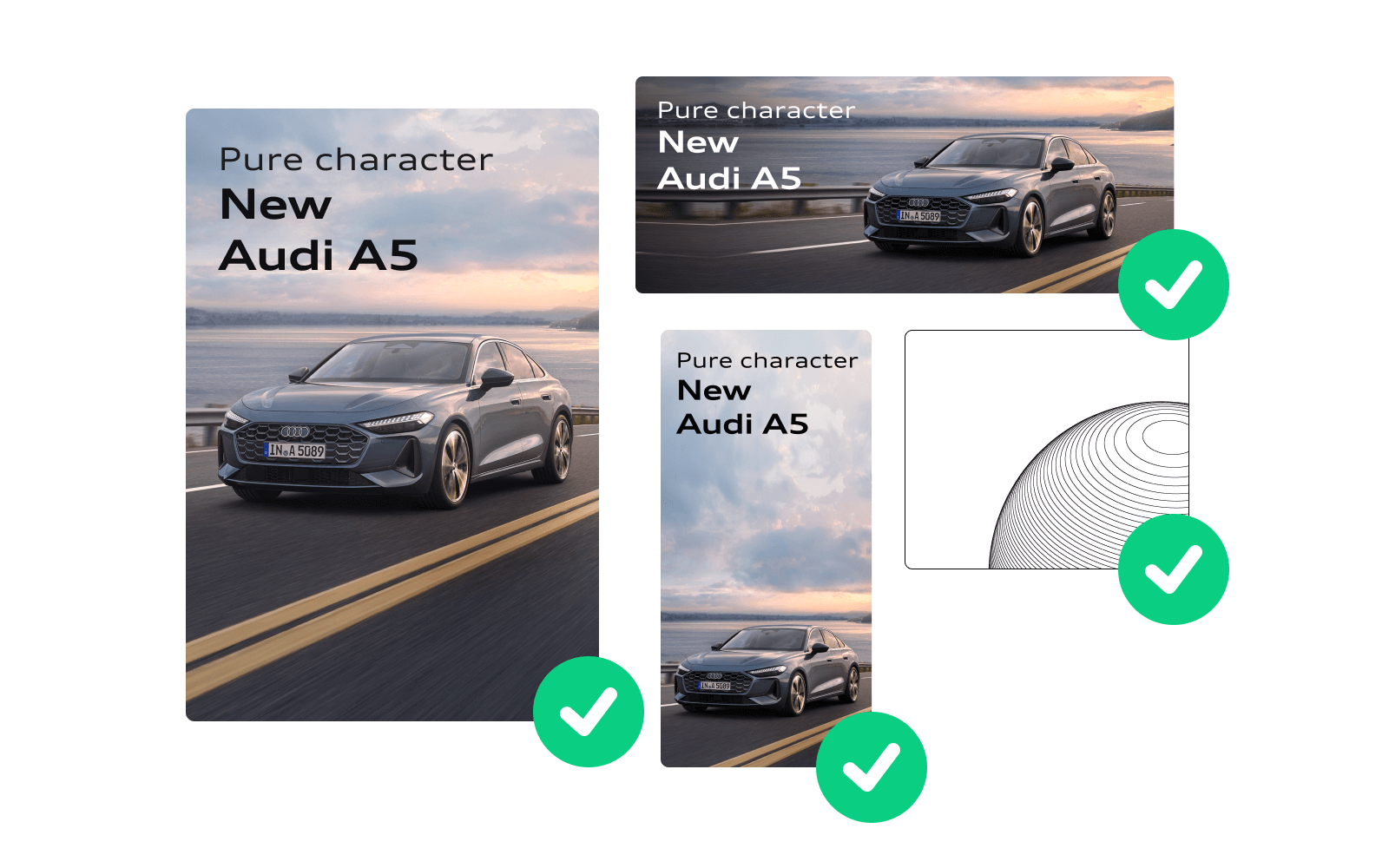
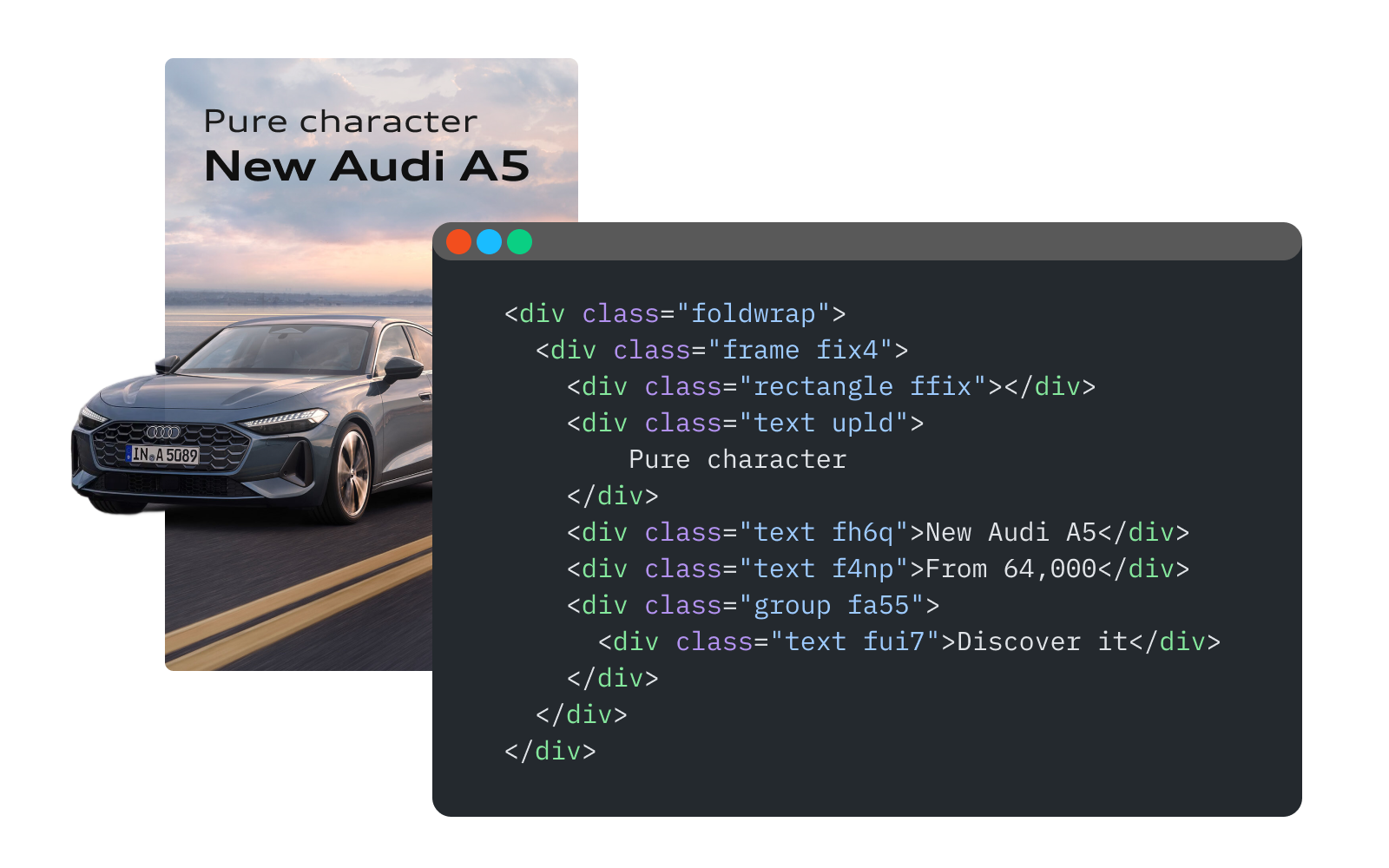
Approved banner + your table → Editable variants
The design is signed off; the copy deck keeps growing – markets, products, prices, CTAs. Paste the rows from Google Sheets, Excel or a CSV, match each column to a text layer, and create one editable variant per row. Layout and motion come from your approved banner. It is banner localization and ad creative versioning without duplicating files by hand.
No integration or template setup: copy the cells, paste them into the editor.
The work after the master is approved
Duplicating a banner and retyping its headline, price and CTA for every market or product is slow, and it is where typos and missed fields creep in. Keep the copy where it already lives – in the table – and let each row become its own variant.
| Marketvariant name | Headline→ headline | Price→ price | CTA→ button |
|---|---|---|---|
| Make room for better. | £89 | Shop the chair | |
| Platz für Besseres. | 99 € | Jetzt entdecken | |
| Place au meilleur. | 99 € | Découvrir | |
| Make room for better. | $95 | Shop now |
Pick a row to see its variant.
Variant name:300x250_DE
Values go in exactly as supplied. Prices, currency symbols, punctuation and approved translations are not rewritten on the way into the banner.
Each column is bound to a specific text layer, so a value never spills into another field. Two columns with the same heading stay two separate columns.
Preview each row next to the original before anything is created. Empty cells, duplicate names and text that may not fit are flagged for a decision.
Use cases
Any campaign where the design stays the same and the facts change: properties, routes, products, listings, dates. If the copy already lives in a table, it can drive the banners.
One brand campaign for every property in the portfolio: hotel name, city, from-rate and stay dates per row, one approved layout across all of them.
A route or destination per row, each with its fare, travel window and booking CTA. When fares change, the sheet is updated first, then the ads.
One ad per product for a sale or a catalogue push: SKU, product name, regular and sale price. Name the variants by SKU so the set maps back to the range.
A banner per listing or development: property type, area, price and viewing date, all from the agency’s existing listing sheet.
The same national offer, localised per dealer or branch: location, model, monthly price and offer end date, with brand creative unchanged.
Every stop of a tour or festival season: city, venue, date and ticket status. Swap “Get tickets” for “Last tickets” in the cell, not in the editor.
Sample rows are illustrative. For creative automation at scale, the table drives the copy while the approved banner keeps layout and motion fixed. Create from spreadsheet changes text; where each row also needs its own photo – a property, a product, a listing – swap the image in that variant.
Paste → Match → Preview → Create
The feature lives in the editor as Batch edits → Create from spreadsheet. It works on the banner you already have.
Variants are copies of the size you have selected, so settle its layout, copy and motion first. Text has to be live text layers, not part of an image.
Starting in Figma? Import the design firstCopy the cells from Google Sheets or Excel, or paste CSV text, headings included. Foldwrap detects the heading row and the separator and shows the table as it read it; correct either, and untick rows you don’t need.
Foldwrap suggests matches from values already in the banner and from layer names. Confirm them, click a layer on the preview or find it in the list, set a column to name the variants, or ignore it.
Step through each row as a static layout, with the original one click away. Resolve empty cells, name clashes and text-fit warnings, then create all variants at once. One undo removes the whole batch.
Each variant is a normal editable banner. Play it, adjust anything the new copy needs, present the set for approval, and export HTML5, video or GIF.
See side-by-side reviewBefore you paste
Put each variant on its own row and each changing text in its own column. Add a column that names the variants – market, product or SKU. Headings are optional, and Foldwrap shows you how it read the table before you continue.
A row that repeats the banner’s current copy helps Foldwrap suggest matches. It is not required: you can always pick the layer by hand.
What a single paste handles
Larger sets: split the table across several creatives. One column can also feed several layers, such as a price that appears in two scenes.
Supplied copy, real layouts
Spreadsheet values are exact; layouts are not elastic. These are the checks that keep a generated set deliverable.
A longer product name or a German headline can outgrow its box. The preview flags text that may not fit; open the variant to adjust line breaks, size or layout.
A blank cell is a decision, not an accident. Choose per column or per cell whether to keep the original text or leave the layer empty.
The preview shows each layout at rest. Play every variant: longer copy may need more time on screen before the next scene.
Create from spreadsheet replaces text. If each product also needs its own photo or logo, swap it in each variant from the assets library.
Names come from the label column with the size in front, like 300x250_DE. Clashes with existing variants are flagged with a suggested alternative.
Check format, dimensions, file weight and click tracking for each destination. Exports are checked against published specs, not guaranteed acceptance.
Create from spreadsheet uses copy your team has already written and approved. To draft a new language version first, ask AI to translate a banner.
Before your first paste
Open the approved banner in the Foldwrap editor, select the size to copy from, and choose Batch edits → Create from spreadsheet. Paste the table, match each column to a text layer, preview the rows, and create the variants. Each row becomes one editable banner.
There is no live connection or sign-in. Copy the cells in Google Sheets and paste them into the editor. Later changes to the sheet do not update variants you already created: edit those variants directly, or paste the updated rows again.
Yes, by pasting. Copy cells from Excel or paste the text of a CSV file. Tab, comma and semicolon separators are detected automatically, and you can change the choice if the table was read wrongly.
Text layers: headlines, prices, CTAs, legal lines and any other live text. One column can update several layers. Images are not replaced from the sheet; swap them in each variant. Words baked into a flattened image cannot be changed.
Each variant starts as a copy of the source size with the matched text replaced, so styling, positions and animation carry over. Copy of a different length can need a layout or timing adjustment; the preview flags text that may not fit.
Put each market on its own row with its approved headline, price and CTA, then paste the table and create one variant per row. Variants are named by market, such as 300x250_DE. For a first draft of a new language, translate a banner with AI, then use the sheet for approved copy.
Treat each version as a row: product, offer, price or audience message in columns. Every row becomes its own editable banner, so versions stay separate files you can review, approve and export. Update the sheet and paste again when copy changes.
It is dynamic creative without a feed or ad server. DCO assembles ads at serving time from a live feed inside an ad server. Foldwrap creates a finished set of editable banners before delivery, and each variant exports as its own HTML5, video or GIF file you can review and approve.
One paste can hold up to 200 rows and 60 columns. A single creative holds up to 50 variants, including the sizes it already has. For larger sets, split the table across several creatives.
Yes. All variants from one paste are added as a single step, so one undo removes the batch, as long as no other edits were made after it. You can also delete individual variants.
Bring the copy deck you already have
Paste the table, confirm the matches, and preview every row.
Then review the set in motion and export it.