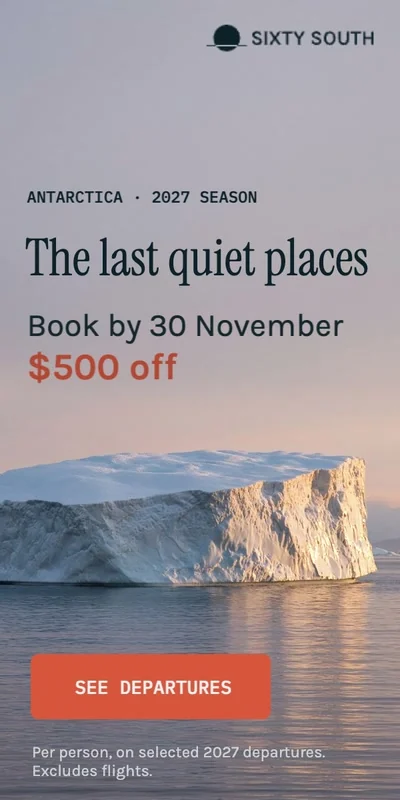
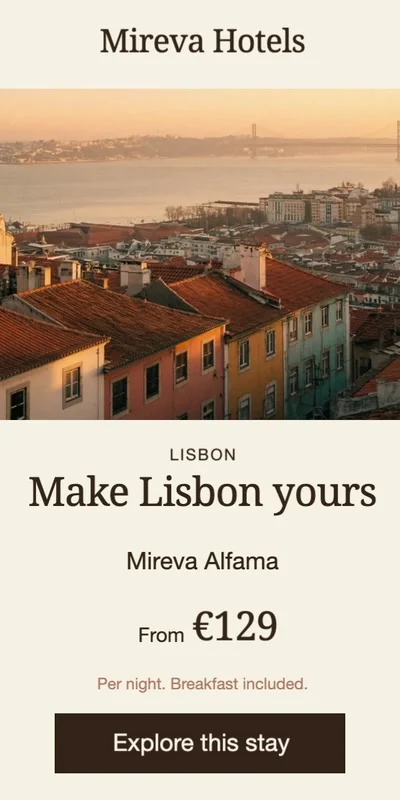
Figma to HTML5 ads. Keep your design. Skip the rebuild.
The design is signed off. Now come the sizes, the motion, and the offer variations. Turn approved Figma frames into editable, animated banner ads – and build the campaign set in Foldwrap.
Hover to play. Open one in the editor and change something.
The work after “looks good”
One approved concept. A whole delivery list.
Figma frames settle the design. They still need to become animated HTML5 banners, fit the media plan, and survive the last round of copy changes. Recreating those layouts in another tool adds another place to check — and another handoff to manage.
The production workflow, in action
Approved frames in. Animated ad set out.
Carry the design forward
Import your frames as the starting point for production. Check the result against the approved layout, then keep working in the editor.
Give motion a head start
Begin with automatic animation. Adjust timing, presets, and keyframes until the headline, product, and CTA land the way you want.
Think in deliverables
Build sizes and content variations, present creatives together, and export HTML5, video, or GIF from the same production workflow.
The Foldwrap Figma plugin is very easy to use and a lifesaver for designers who don't want to use Google Web Designer or Adobe Animate. I had already created my designs in Figma, so this was a great resource that allowed me to quickly convert them into HTML5 banner ads and add custom animations.
Eric Van Buskirk
Freelance Designer
From design file to delivery files
How to convert Figma designs into animated HTML5 ads
Keep the approved design as your reference. Animate the Figma design, build the display ad sizes, and make the production decisions in Foldwrap.
01
Import the Figma frames
Open the Foldwrap plugin in your Figma file, select the frames you need, and click Import. Review the imported layout, text, and assets against the source before building on it.
Foldwrap applies automatic animation to give you a starting point. Refine the sequence, duration, and individual keyframes in the editor — no coding required.
Create additional formats with AI resize and refine each layout. For repeated offers, prices, or supplied translations, generate content variants from pasted spreadsheet data. Check your plan for data-driven production.
Present creatives side by side with a share link. Check copy, motion, dimensions, and click tracking, then export native HTML5 for display ad placements, or MP4, WebM video and GIF where those formats are required.
A useful Figma-to-HTML5 tool has to hold up beyond the first preview. Here is what to check in Foldwrap before your next deadline.
01 / Import fidelity
Compare fonts, line breaks, logos, and effects with your approved frame. Inspect complex groups early so a small import difference does not get repeated across the set.
02 / Motion you can edit
Check when the offer appears, how long legal copy stays visible, and whether the CTA has time to register. Automatic animation is a first draft you can refine.
03 / Layout at every size
A leaderboard and a skyscraper need different composition decisions. Review each resized creative for hierarchy, image cropping, and readable copy.
04 / Variation accuracy
Longer translations and different price lengths can change the layout. Proofread supplied content and inspect the generated variants before sharing the campaign.
05 / Delivery requirements
Confirm the destination’s accepted format, dimensions, file weight, and click-tracking requirements. Test your exported package in the destination platform before launch.
06 / The next revision
Keep working in the editable creative when copy changes. For a replacement asset, copy an individual Figma element as SVG or PNG and paste it into Foldwrap.
Before your first import
Figma to HTML5: your questions, answered
How do I export animated HTML5 banner ads from Figma?
Use the Foldwrap Figma plugin to import selected frames. Foldwrap adds automatic animation; open the result in the editor to refine it, then download an HTML5 package. Check the exported creative against your destination platform’s requirements before uploading.
Do I need to code or build the animation in Figma?
No. Start with your static Figma design. Foldwrap supplies an automatic animation draft and visual controls for timing, presets, and keyframes, then generates the HTML5 output.
Will my Figma layers and text stay editable?
Supported text and design elements remain editable, but some vector groups may be flattened during import. Enabling “Outline text as vector” turns text into SVG, so it can no longer be edited as text. Compare your first import with the original, especially fonts and complex effects.
Do I need a separate Figma frame for every banner size?
No. You can import a master frame, or many to animate them in sequence, create additional sizes with Foldwrap’s AI resize, and adjust the results in the editor. If your team has already designed each size in Figma, you can import those frames instead. Review every aspect ratio before delivery.
Can I create different offers and language versions?
Yes. Foldwrap supports data-driven creative variants from pasted spreadsheet data, including different copy and offers. You can supply translated text for language versions or ask AI to translate it.
Can I export my Figma design to GIF or MP4 animation?
Yes. Import the Figma frames, animate them in Foldwrap, then export an animated GIF or a video as MP4 (H.264 or H.265) or WebM. Choose the format your placement accepts and check its delivery specifications.
Can I export video and GIF as well as HTML5?
Yes. Foldwrap supports native HTML5, video (MP4 with H.264 or H.265, and WebM), and GIF export from the same creative. An HTML5 package is not interchangeable with a video file, so check what your placement accepts.
Does changing the Figma file automatically update every ad?
Do not assume a live, two-way connection between your Figma file and every campaign variation. Make production edits in Foldwrap and check the affected creatives. For individual asset changes, copy from Figma as SVG or PNG and paste into the editor.
Bring the design that is already approved
Your next campaign starts with the Figma file you have.
Import real design. Refine the motion. Make a second size. Take it through export and see how Foldwrap fits your production day.