
Help / Export Targets and Click-Through Links for HTML5 Banner Ads
Before a HTML5 creative leaves Foldwrap, two decisions travel with it: which platforms it must adapt to and where a click goes. This guide covers both.
Set the export targets
Open the Export Options panel and click Export targets. One ZIP is produced per selected target, so picking three platforms exports three platform-tuned packages.
Pick every platform the campaign will actually traffic to. Narrow the list with search — it matches
names, former names, and common aliases, so cm360, DoubleClick, and AppNexus all find the
right row. The list groups platforms into Standards, Ad servers, DSPs, Networks,
Regional, and Other.
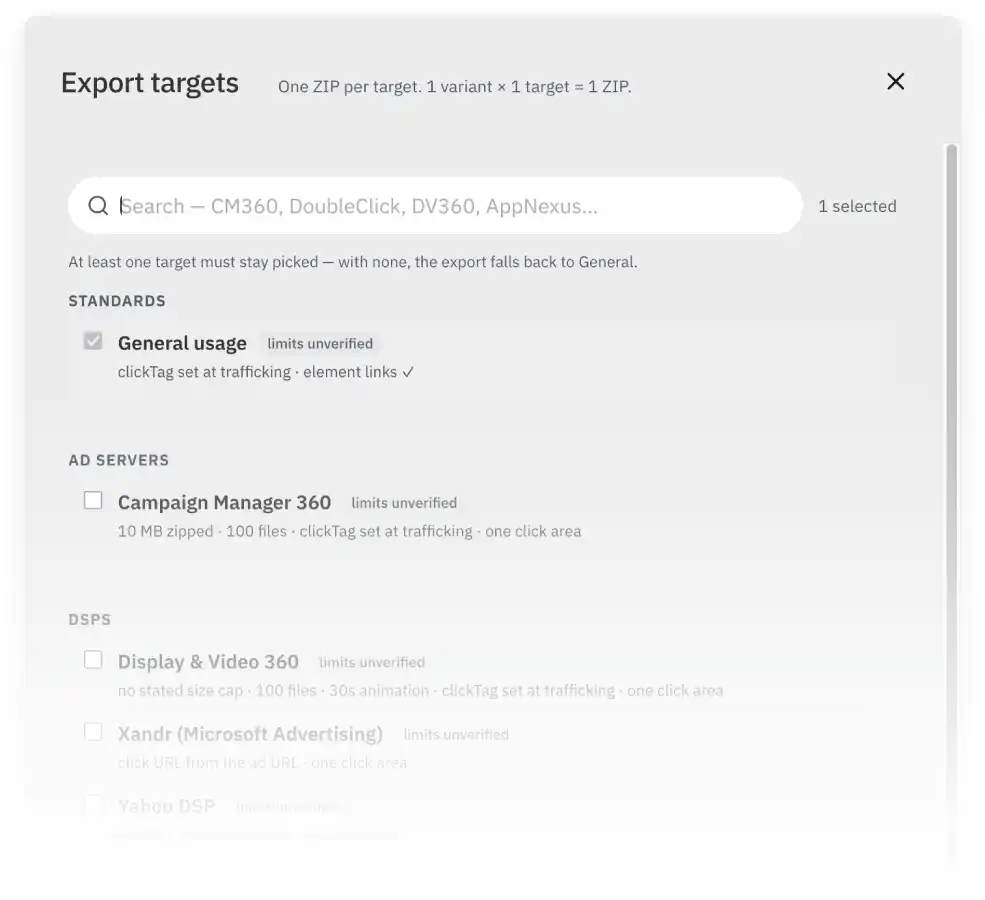
What each row tells you
- limits unverified — we could not confirm every limit from a primary source yet. Check with your platform contact before delivery.
- export not ready — the platform is selectable for checking, but no bundle is produced for it yet.
- Row warnings — live problems the editor already knows about, such as an animation that runs too long or a required click URL that is missing.
At most six targets fit in one export. If you need more, export in two batches.
Campaign default vs. creative targets
When a creative belongs to a campaign that already names its platforms, the dialog shows the campaign default. Leave the creative's own targets empty to inherit it, or pick specific platforms to override the campaign for this creative. Use campaign default switches back to inheriting.
A creative must always have at least one target: if there is no campaign default and you unpick the last platform, the export falls back to General usage.
Set the click-through link
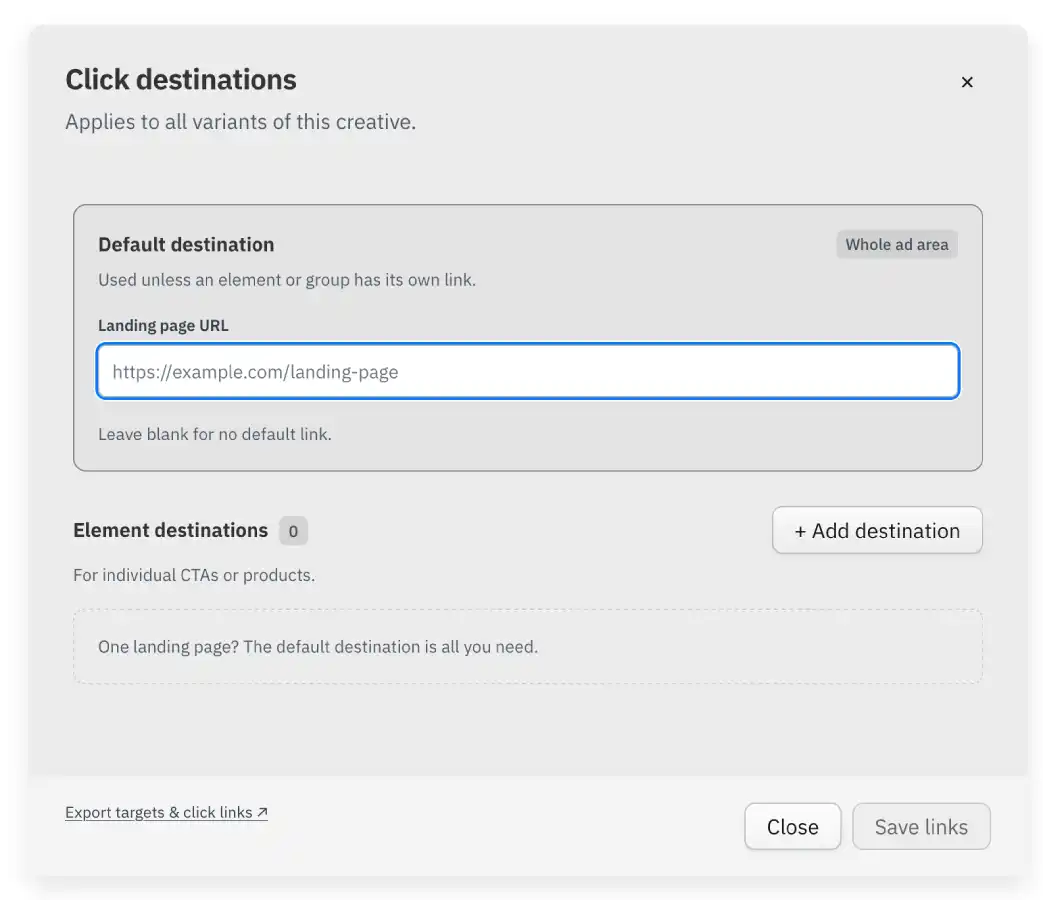
Click destinations live in their own Click destinations dialog. They apply to every variant of the creative: one default destination for the whole ad, plus optional named destinations per element.
Default destination
The default destination is used by the whole ad area unless an element has its own link. Paste a
complete https:// or http:// URL. If the campaign sets a click URL, leave the field blank to
inherit it, or choose Use custom URL to override it for this creative.
Element destinations
For individual CTAs or products, add element destinations — each with a name and its own URL.
Then bind an element to a destination in the editor. General usage is the one profile that keeps
separate element destinations; most platforms allow a single click area and flatten the rest.
If any selected target flattens element destinations, the dialog asks you to acknowledge it once before saving.
clickTAG and platform-managed tracking
Most ad platforms replace a clickTAG variable at serving time, so the exported file only needs the
placeholder — you do not paste a URL in the creative. Some platforms are stricter and require a URL
in the file itself. The Click destinations dialog and the export target rows flag whichever
applies.
Before you export
Run through this short list:
- Every platform the campaign traffics to is selected.
- Animation length and file size are inside each platform's limits.
- The default destination is set, or intentionally blank for a
clickTAG-only platform. - Element destinations are bound and the flattening warning is acknowledged.
- No row shows export not ready for a platform you need today.
Export with Export HTML5 to produce one ZIP per target.
If a platform is missing entirely, get in touch and we'll look at adding it.