
Help / HTML5 Ad Animation Modes: Auto, Custom, Keyframes, and Static
In Foldwrap, animation is edited in two places:
- Timeline for timing and order: drag, resize, and right-click actions.
- Animation tab in the right panel (next to Design) for entrance and exit settings, keyframe values, and mode switches.
Every element has its own timeline row. A row's color shows what kind of element it is (see row colors); its shape shows the animation mode.
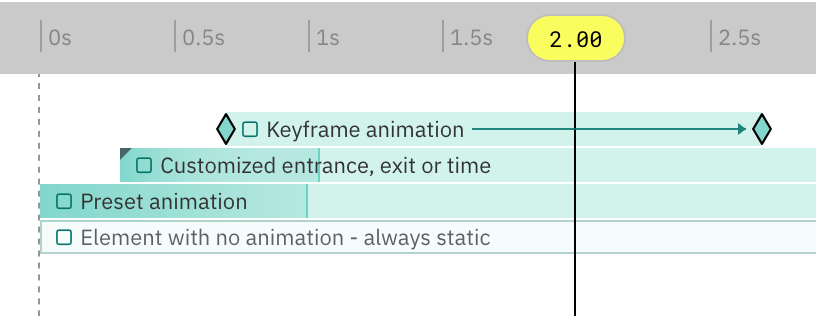
Four animation modes
No animation
An outlined bar with no fill. The element is shown without any entrance or exit motion. It is simply there.
Use this for things that should never move: backgrounds, frames, legal lines, a logo that stays put.
Auto-animation (preset)
A filled bar with darker ends. The darker parts are the entrance and exit. Motion comes from the creative's Motion preset in the Creative tab (for example Fade, Soft rise, Bounce), and timing from the creative's Scene duration. Change the preset, and every auto-animated element follows.
Use this when you need fast output and consistent motion across many ad sizes.
Custom animation
A filled bar with a small dark mark in its top-left corner. An element becomes custom as soon as you change its timing or motion by hand: drag or resize its bar, pick a different entrance or exit, or edit values in the Animation tab. Hover the mark for a reminder.
A custom element keeps its own timing. Changing the creative's motion preset or scene duration no longer moves it.
Use this when one element needs timing or motion that differs from the rest.
Keyframe animation
A filled bar with diamond keyframe markers. Motion is set by keyframes across time instead of one entrance and one exit. A thin arrow between two keyframes shows that something changes between them.
Use this for precise motion paths, multi-step movement, or advanced transitions.
The shading inside entrances and exits also shows the easing. For that and other timeline details, read Timeline.
How to switch between modes
| To get | Do this |
|---|---|
| No animation | Right-click the row and choose Remove Animation, or click the entrance or exit part of a bar and choose No animation, or use Remove animation in the Animation tab. |
| Auto-animation | Right-click the row and choose Reset to Preset, or use Reset to preset in the Animation tab. This works from custom, keyframe, and no-animation elements. |
| Custom animation | Change the element's timing or motion by hand, or pick a preset from the row's Entrance / Exit right-click submenus. |
| Keyframe animation | Turn on Keyframe animation in the Animation tab, or right-click the row and choose Convert to Keyframes. |
| Back from keyframes | Click Custom in the Animation tab. The element gets a custom animation with editable entrance and exit values. |
Reset to Preset, Remove Animation, and Convert to Keyframes act on every selected element at once.
Turning animation off for the whole creative
The Animation switch in the Creative tab (or the A key) turns animation off for the entire creative, which then exports as a static banner. Turn it back on the same way.
Keyframe basics
- Add keyframes with
Add keyframein the Animation tab, orAdd Keyframe at Playhead/Add Keyframe Herefrom timeline right-click menus. - Drag keyframes to retime motion.
- Each property (opacity, move, scale, rotate) keeps its own keyframes. In the Animation tab, click the ◇ next to a property to key it at the playhead without changing its value, or its ◆ to remove that property's keyframe.
- Click the small arrow left of a keyframed row to open a row per property. There you can drag one property's keyframe on its own, right-click it to delete or copy it, or right-click the stretch between two keyframes to set that property's easing.
- Keyframes stay in chronological order and snap in small time steps for precise edits.
- A keyframed item must keep at least 2 keyframes.
- Best for non-linear movement, staged reveals, CTA timing polish, and advanced transitions.
Word-by-word text
A text entrance can build up one word at a time instead of landing as one block. Soft rise, Slide & pop and Quick lift do this out of the box. Small copy, such as captions and legal lines under 16px, still enters as one block.
To tune it, select one or more text elements and use Word spread in the entrance settings of the Animation tab:
0 msmakes all words enter together.- Move the slider right, or type a gap in milliseconds, for a more noticeable sequence.
- The last word always finishes within the Entrance duration, so the longest possible gap depends on the duration and the word count. Increase the duration for more spread.
Word spread works on texts of 2 to 80 words and plays the same in the editor preview and in exported banners. Words joined by a no-break space stay together.
Copy and paste animation
You can copy animation from one element and paste it to another element, including across variants in the same session.
Options:
- Paste Animation (keep timing) - applies source motion while preserving target timing.
- Paste Entrance Only - applies only entrance behavior.
- Paste Exit Only - applies only exit behavior.
- Paste Animation (full) - applies full copied animation.
This is useful when you need consistent motion across many banners while keeping each layout structure intact.
Copy motion from another size
Copy/paste above moves one element's animation. When a whole size needs the motion you already approved on another size, use Copy motion from… instead — it matches the layers between the two sizes and copies the animation for all of them at once.
How to run it
- Open the size you want to change. The copy always writes into the size you are looking at, never into the others.
- Open the variant menu, either way:
- click the variant name in the breadcrumb at the top of the editor, or
- right-click the variant in the variants sidebar.
- Choose
Copy motion from…. - Pick the size to copy from.
- Leave all three boxes ticked to copy everything, or untick what should stay as it is:
- Per-element motion — entrances, exits and keyframes.
- Per-element timing — when each element appears and how long it stays.
- Creative-level — the animation preset, frame delay and loop count of the whole banner.
- Press
Apply.
Layout is never touched. Positions, sizes and text stay exactly as they are in the size you applied to — only motion and timing are copied. Like any other edit, it can be undone with Ctrl/Cmd+Z, and the review label in the timeline has an undo button of its own.
Read the result before you ship
After the copy, every timeline row shows what happened to it, and the labels stay until you change something else:
| Marker | Meaning |
|---|---|
| Green circle check | Every element in that row found its counterpart and took its motion |
| Amber triangle | Some elements in that row matched, some did not |
| Amber circle minus | Nothing in that row could be matched, so nothing was changed |
| Gray lock | Skipped because the element is locked |
Hover a marker to see the element names and the reason each one was or was not matched. Click it to clear the review.
Do not skip this step on client work. An amber triangle means part of that group is still holding its old animation.
Improve your chances of a clean match
Foldwrap pairs elements by what they are, not by where they sit. A few habits make almost every element match:
- Build sizes from one master. Sizes made with
Duplicate, with AI resize, or from spreadsheet data keep their connection to the original and match nearly perfectly. Sizes built separately from scratch have the least in common. - Keep layer names the same across sizes.
CTAin one size andCTA buttonin another are two different elements as far as matching is concerned. Renaming in Figma before import, or in Foldwrap afterwards, both work — just keep them consistent. - Keep the same grouping. An element inside a group in one size and loose in another is harder to pair. Matching follows the group structure.
- Give duplicates distinct names. Three elements called
Rectangle 12in the same group can only be told apart by their order. If that order differs between sizes, they may be left unmatched.star-left,star-mid,star-rightalways match. - Reuse the same images. An image placed from the same asset in both sizes is recognised even if it was renamed.
- Lock what you tuned by hand. A locked element is skipped and reported as skipped, so a hand-timed hero animation survives a copy onto the rest of the size.
When two elements are equally plausible, Foldwrap deliberately leaves the element alone and flags the row for review rather than guessing. Rename one of them and run it again — that is usually the whole fix.
When to use it
- A size was adapted by hand and now needs the campaign's approved motion.
- The client changed the timing after the set was already built — fix one size, apply to the rest.
- Sizes came from separate Figma frames and have drifted apart.
- A late format was added to an otherwise finished campaign.
Recommended workflow
- Start with an auto-animation preset to generate a fast first draft.
- Adjust only the elements that need custom timing.
- Use keyframes for hero elements, CTA moments, and complex transitions.
- Reuse animation with copy/paste for single elements, or
Copy motion from…to bring a whole size in line with an approved one.
This workflow helps freelancers close revisions faster and helps agencies keep output quality consistent at scale.