Delivering a banner ad campaign involves more than designing the creatives. Agencies must track required sizes, apply the correct click-through URL, catch outdated exports, collect approvals, and prepare files for ad operations.
A banner campaign delivery workflow is the process of tracking required ad sizes, approvals, current exports, click-through settings, and final HTML5 ZIP files across a campaign. In Foldwrap, you can keep those requirements with the creative work, share one review link, and download one delivery package.
Ask anyone who ships display advertising where the time goes, and almost nobody says "designing the banner." The time disappears into working out which sizes are missing, re-entering the same click-through URL, and assembling a delivery ZIP by hand before the campaign launch date.
That work is real and repetitive. Until recently, most of it lived outside the tool used to make the creatives — usually in a spreadsheet nobody else on the team could read.
Why Banner Campaign Delivery Takes So Long
A campaign is not just a folder of banners. It is a set of delivery requirements: a client, a brief, a launch date, a list of promised formats, and a final handoff somebody has to approve. Three time sinks show up on almost every account.
The same facts, re-entered per creative. The click-through URL and the ad platform are campaign-level decisions, but most tools ask for them once per banner. Twelve sizes means twelve chances to paste the wrong tracking link.
The requirements live outside the work. The list of required sizes arrives in an email from the media buyer, moves into a spreadsheet, and then never touches the files again. Nothing in the production tool knows what was promised, so nothing can tell you what is missing.
The handoff is assembled by hand. Every size is exported separately, then gathered, renamed, checked against the list, and zipped. This happens under deadline, which is exactly when a missing 160 × 600 is most expensive.
Group Every Creative Into One Campaign
The first step is to stop treating the set as loose files. A campaign groups the creatives that ship together and holds the information you would otherwise repeat for every banner: the client, brief, due date, delivery defaults, and required deliverables.
Nothing about the creatives changes. A campaign records what the set is for. Filing is optional: you can still create, edit, and export unfiled creatives, and the Unsorted view keeps them easy to find.
Set the delivery defaults once
Enter the click-through URL and ad platform on the campaign, and every creative in it exports with them. If one creative needs different settings, you can override them. The editor tells you when a value comes from the campaign rather than from the banner in front of you.
One place to change a tracking link, instead of twelve.
Define the Required Banner Sizes and Deliverables
Type the formats you owe into the campaign's required variants — the list your media buyer sent you:
300x250, 336x280, 728x90, 160x600, 300x600
A delivery is not always one banner per size, though. When the same size ships in several versions — a dark and a light treatment, two offers, two markets — name them:
160x600-black1, 160x600-black2, 160x600-white1, 160x600-white2
Those are four separate deliverables, not one row with a note beside it. A deliverable does not have to be a size at all. If you and the client both call something hero or fiesta-200x400, use that name in the tracker too.
This required-variant list is the piece that usually lives in a spreadsheet. Once it lives with the work, Foldwrap can track campaign coverage automatically. The campaigns guide covers the naming rules in full.
Track Missing and Outdated Banner Exports
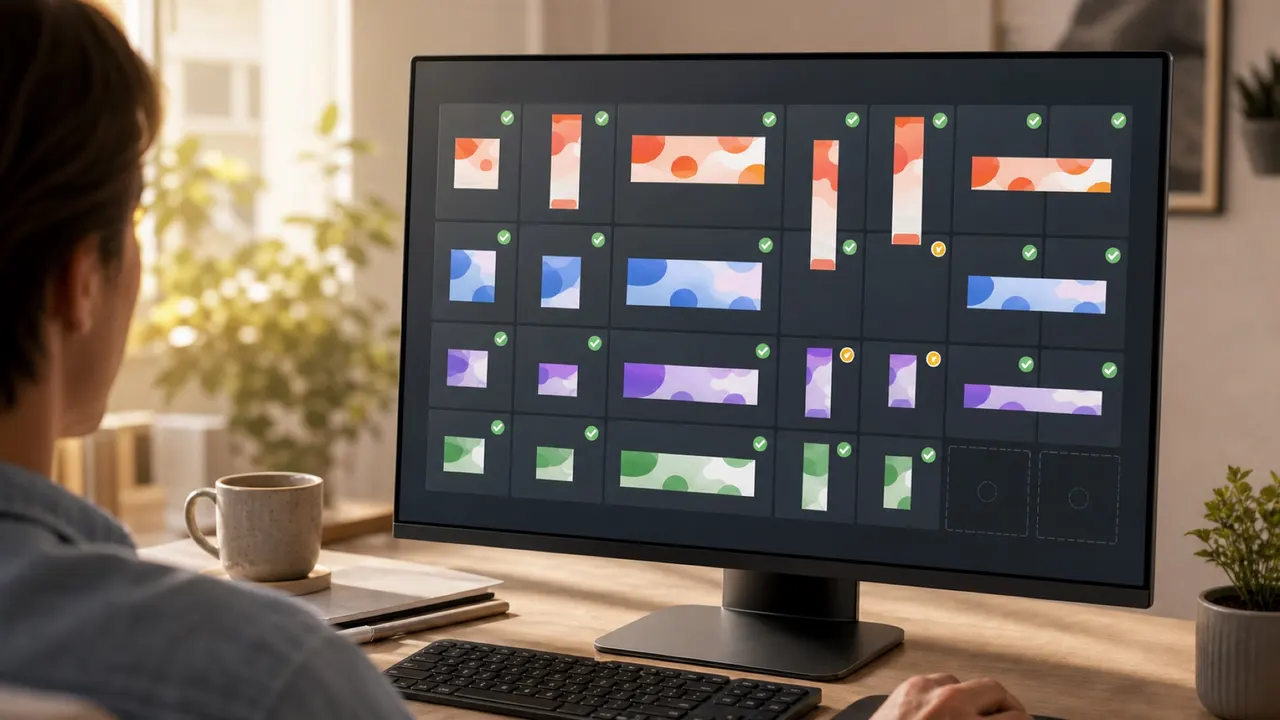
The coverage grid puts your creatives down one side and the required variants across the top. Every cell answers one question:
| Cell | What it means |
|---|---|
| Shipped | Exported, and current |
| Re-export | You edited the creative after you last exported it |
| Not exported | The variant exists, but there is no file yet |
| Not built | Nothing matches that deliverable yet |
A spreadsheet can show the third and fourth states if somebody keeps it up to date. The second state is harder to catch. If you change a headline after exporting, the file on disk is now behind the creative, and its filename will not warn you. That uncertainty is why agencies often rebuild an entire campaign ZIP before handoff. Foldwrap instead compares the export time with the creative's last edit and marks the outdated file.
When a missing variant includes dimensions, clicking the gap opens AI Resize with that size already selected. For a named deliverable without dimensions, the editor opens so you can build the variant manually. While you work, the variants panel shows what the campaign is still waiting for. The gap is visible where the work happens, not only on a separate page you have to remember to open.
Share One Review Link and Delivery Package
Two things get a finished campaign out the door, and both are campaign-level rather than per-banner.
One client review link. A single private link, built on Foldwrap's side-by-side review view, shows every exported format in the set and identifies work that has not been exported yet. Revoke it when the job ends instead of leaving old campaign files accessible indefinitely.
One delivery package. A single archive contains every exported ZIP plus a manifest for the ad operations team uploading and launching the campaign. Bundles are renamed inside the archive so the person uploading them can tell two 300 × 250 ads apart without opening either.
For details on both, see sharing a campaign and delivering the files.
Benefits for Agencies and Freelancers
The individual features are small. What they add up to is worth naming.
Scope changes stop being invisible. A client adds two sizes after production begins. Add them to the required list and the grid immediately shows two new columns of gaps across every creative in the set. Nobody has to remember to update a separate document.
Handoff stops being a memory test. "Did we send the latest version?" is answered by a status in the grid rather than by comparing timestamps in a file browser.
A new person can pick up an account. A freelancer joining mid-campaign sees what was promised, what is done, and what is outdated. They do not need a handoff call or access to somebody else's spreadsheet.
Archiving is safe. When a campaign ships, archive it. It leaves your working list without touching a single creative, and you can make it active again whenever the client returns for another campaign run.
Banner Campaign Delivery Checklist
- Create a campaign and file the set into it.
- Set the click URL and ad platform once, on the campaign.
- Enter the required variants — sizes, or named deliverables where one size ships several versions.
- Work down the coverage grid until nothing reads Not built or Not exported.
- Re-export anything marked Re-export before you send.
- Share the client link for review, then download the delivery package for ad operations.
- Archive the campaign when it ends.
If you are still deciding which formats to deliver, our standard web banner sizes guide covers the dimensions worth considering. If revisions are the bigger problem, see our workflow for handling late client change requests. And if part of your delivery chain still runs through Adobe Animate, see what its 2026 maintenance-mode status means for HTML5 banner production before you plan next quarter's toolchain.
Banner Campaign Delivery FAQ
What should a banner campaign delivery package contain?
A delivery package should contain a current HTML5 ZIP for every required format, clear filenames, file-weight information, click-through settings, and a trafficking manifest. Foldwrap collects the exported ZIPs and generates the manifest in one campaign-level archive.
How do you track multiple banners with the same dimensions?
Give each version a unique variant name, such as 160x600-dark and 160x600-light. The tracker will treat them as separate deliverables even though their dimensions match.
How can you tell whether an exported banner is outdated?
Compare its export time with the creative's last edit time. Foldwrap does this automatically and marks a file Re-export when the creative changed after its latest export.